
Oceanic.js
Compatibility
The package is compatible with oceanic.js v1.9.0 or higher
WARNING
Discord Analytics is not compatible with Oceanic.js shards. Feel free to open a Pull Request at https://github.com/DiscordAnalytics/node-package
Dependency
Let's install @discordanalytics/oceanic's package :
npm install @discordanalytics/oceanicInstallation
// Import Oceanic.js's client
const { Client } = require("oceanic.js")
// import discordanalytics
const { default: DiscordAnalytics } = require("@discordanalytics/oceanic")

// Create Discord client
const client = new Client({
  auth: "Bot <YOUR_BOT_TOKEN>",
  gateway: {
    intents: ["GUILDS"] // This intent is required
  }
})

// Create Discord Analytics instance
// Don't forget to replace YOUR_API_TOKEN by your Discord Analytics token !
const analytics = new DiscordAnalytics({
  client,
  api_key: 'YOUR_API_TOKEN'
});


// When Discord client is ready
client.on('ready', async () => {
  await analytics.init();
  // start tracking selected events
  analytics.trackEvents();
  console.log("Bot is ready!");
});

// Login to Discord
// Don't forget to replace token by your Discord bot token !
client.connect();
For self-hosted instances
By default, the stats are sent to discordanalytics.xyz. You can change this using the api_url property:
const analytics = new DiscordAnalytics({
  // ...
  api_url: "https://discordanalytics.example.com"
});
In order to start your bot with Discord Analytics, you need to add NODE_ENV to you environment variables and set it to production:
export NODE_ENV=productionYou can also add it to your .env file if you have one or add it to your start script in your package.json:
{
  // ...
  "scripts": {
    "start": "NODE_ENV=production node index.js"
  }
}
This feature allows you to don't send stats to Discord Analytics while you're in a development environment by just removing the variable.
Advanced usage
Using ESM (JavaScript)
Optimize events (NodeJS)
Complete installation
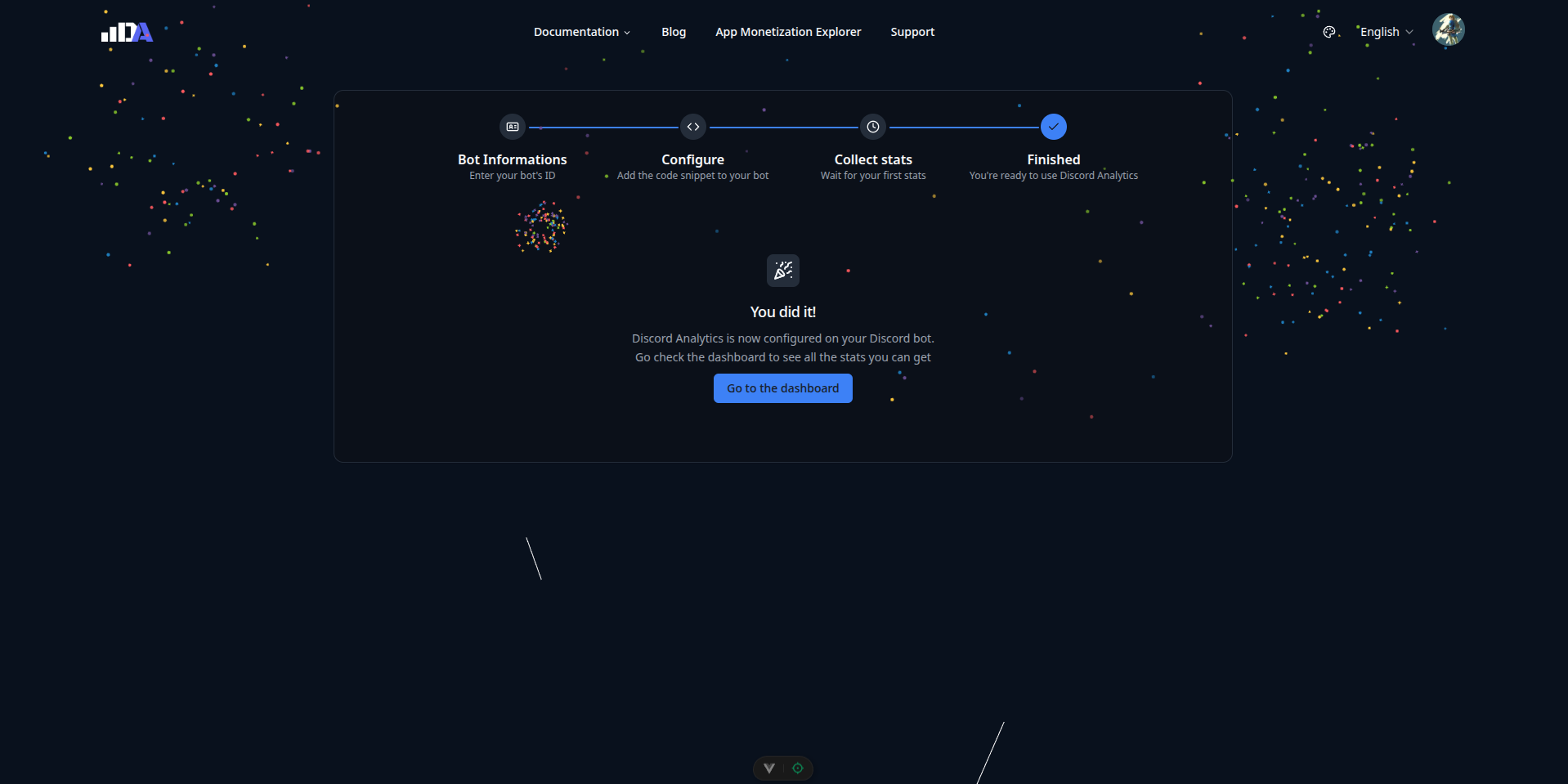
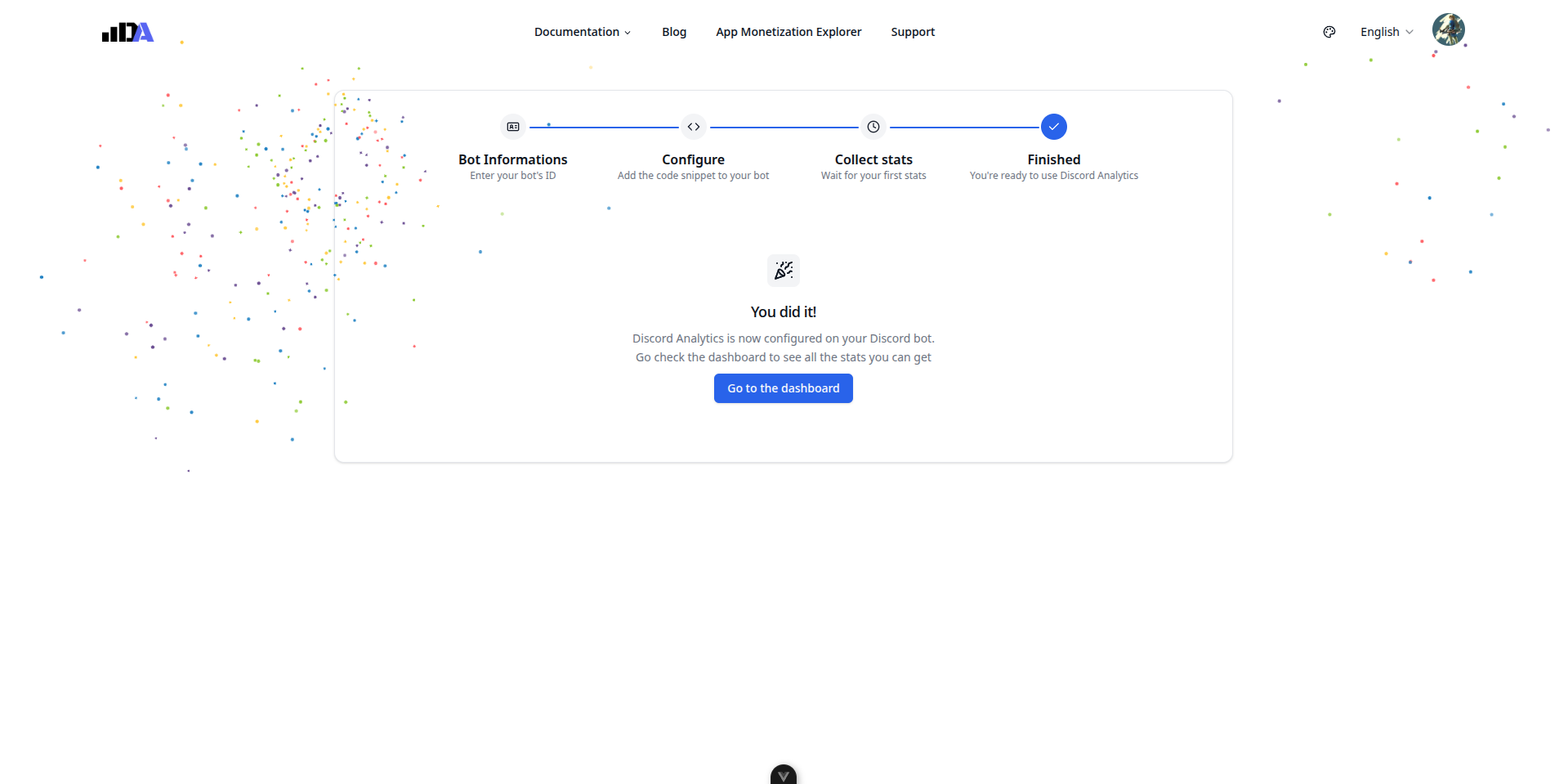
To complete installation, please restart your bot. And wait on the dashboard until you get this page: